Saturday, March 27, 2010

Mystery behind Failed on Start (Retrying)

Few days back i wanted to check the behavior of a out of the box (OOTB) document approval when there are multiple approvers in MOSS 2007. I thought the task is simple enough and was all geared up. I started one of my MOSS 2007 VPC’s and opened up a site which i had created earlier. I configured the OOTB approval workflow for a document library which was already available there. The approval workflow was configured to start on creation/updation of any item.
I wanted to test out the workflow. I uploaded a document into the library and hoping for the workflow to kick start. Little that i knew, i was in for a shock!!!
The workflow failed with the status Failed to Start (Retrying). (Refer the below picture)
mossworkflowfailedtostartstatus
This got me wondering what has gone wrong. I am using a OOTB workflow without any modifications, why does it give this error. The workflow log doesn’t help much to understand the problem. (Refer the below picture)
mossworkflowfailedtostartworkflowhistory
The next obvious place to check for diagnosing the issue was the SharePoint logs in 12 hive folder. On checking the logs, i found there where a few entries for Workflow Infrastructure category in the log. The error read like this…
Load Workflow Class: System.Reflection.TargetInvocationException: Exception has been thrown by the target of an invocation. ---> System.InvalidOperationException: The requested Performance Counter is not a custom counter, it has to be initialized as ReadOnly.     at System.Diagnostics.PerformanceCounter.Initialize()     at System.Diagnostics.PerformanceCounter..ctor(String categoryName, String counterName, String instanceName, Boolean readOnly)     at System.Workflow.Runtime.PerformanceCounterManager.CreateCounters(String name)     at System.Workflow.Runtime.Hosting.DefaultWorkflowSchedulerService.OnStarted()     at System.Workflow.Runtime.Hosting.WorkflowRuntimeService.HandleStarted(Object source, WorkflowRuntimeEventArgs e)     at System.EventHandler`1.Invoke(Object sender, TEventArgs e) at System.Workflow.Runtime.WorkflowRuntime.StartRuntime()     at Microsoft.SharePoint.Workflow.SPWinOeHostServices..ctor(SPSite site, SPWeb web, SPWorkflowManager manager, SPWorkflowEngine engine)     --- End of inner exception stack trace …..
This error was quite interesting to me. It looks like the OOTB workflow is creating some performance counters when the workflow starts and it is having some problems to create one thus giving an error Failed on Start.
When i was wondering why it was not able to find the performance counters, thanks to the blog post by Kiran really helped to figure out what’s going wrong. As pointed out in the blog post, there was some issue with the environment and for some reason Windows Workflow Foundation related performance counters were missing. This was basically creating the problem.
As directed in the blog post, I reinstalled .NET Framework 3.0 and associating performance counters with WF instances… Now the workflow was working properly… Wow!!!
However, I have absolutely no idea why those Performance counters went missing!!!
Technorati Tags: ,

Wednesday, March 24, 2010

Assigning a task to multiple users in MOSS Workflow

I have been thinking of writing about this for quite a while now!!! Finally managed to sit down to write about the peculiar issue which we faced few weeks back in a Project.

Scenario

Business documents are created and shared using a document library in MOSS. The documents go through the approval process on creation/updating. A list of approvers is assigned. Document can be approved by any one of the approver.

Problem

The out of the box (OOTB) Approval workflow available in MOSS has the capability to add multiple approvers to an item added to document library or list. However it changes only the routing process of the approval workflow i.e. the approval task is to be sent to all the approvers (parallel) or task sent to one approver at a time (serial). (Refer the below picture)

MOSSworkflowApprovers

If we configure our workflow as parallel, then when a document or list item is created/updated, a separate task will be created for all the approvers. (Refer the below picture)

mossworkflowtasksootb

All the approvers have to approve the task for the document/list item to be approved.

However, in our scenario there should be only one task created irrespective of the number of approvers. Any one of the approvers can approve the task. This warranted a custom workflow solution to be built.

In a custom workflow we need to create a task which is assigned to multiple approvers. WF has the CreateTask activity which helps to create the task.

mosscustomworkflowpic1

MethodInvoking event of CreateTask activity is used to assign properties like assignedTo to the task which is created. (Refer the MethodInvoking event of CreateTask activity)

   1: private void createTaskAct_MethodInvoking(object sender, EventArgs e)
   2: {
   3:     try
   4:     {
   5:         using (SPSite site = new SPSite("http://madhu-win2k3:5000/Docs"))
   6:         {
   7:             using (SPWeb web = site.OpenWeb())
   8:             {
   9:                 TaskID = Guid.NewGuid();
  10:                 TaskProps = new SPWorkflowTaskProperties();
  11:                 TaskProps.Title = "Demo Task";
  12:                 TaskProps.AssignedTo = @"1;#MADHU-WIN2K3\Administrator;#15;#MADHU-WIN2K3\sharepointuser";
  13:                 //TaskProps.AssignedTo = web.SiteUsers[0].ID.ToString();
  14:                 TaskProps.Description = "test";
  15:                 TaskProps.ExtendedProperties["comments"] = comments;
  16:                 TaskProps.ExtendedProperties["instructions"] = instructions;
  17:             }
  18:         }
  19:  
  20:     }
  21:     catch (Exception ex)
  22:     {
  23:         Debug.WriteLine(ex);
  24:     }
  25: }

However, the CreateTask activity doesn’t support assigning the task to multiple users even though AssignedTo field of the Workflow Tasks list is changed to allow multiple selection (Refer the below Pic).

mossworkflowtasksassignedTo

Solution

One of the solution to the above problem was to have some other way to assign the task to multiple users since the CreateTask activity was not doing the job.

OnTaskCreated Activity to the rescue. OnTaskCreated activity provides a great way to tap into the task which has been been created and assign properties. The invoked event of the OnTaskCreated activity is used to assign the above said properties. (Refer the sample code for invoked event)

   1: private void onTaskCreated1_Invoked(object sender, ExternalDataEventArgs e)
   2: {
   3:     try
   4:     {
   5:         using (SPSite site = new SPSite("http://madhu-win2k3:5000/Docs"))
   6:         {
   7:             using (SPWeb web = site.OpenWeb())
   8:             {
   9:                 web.AllowUnsafeUpdates = true;
  10:                 SPList list = web.GetList("http://madhu-win2k3:5000/Docs/Lists/Tasks/AllItems.aspx");
  11:                 SPListItem item = list.Items.GetItemById(onTaskCreated1.AfterProperties.TaskItemId);
  12:                 item["Assigned To"] = @"1;#MADHU-WIN2K3\Administrator;#15;#MADHU-WIN2K3\sharepointuser";
  13:                 item.Update();
  14:             }
  15:         }
  16:     }
  17:     catch (Exception ex)
  18:     {
  19:         Debug.WriteLine(ex);
  20:     }
  21: }

With the above code it is now possible to assign the same task to multiple approvers. Thus any one of the approver can approve the task to make the corresponding document/list item approved.

However, for the above code to work it is necessary that the version settings for workflow tasks be disabled. Otherwise, we will get the following error “This task is currently locked by a running workflow and cannot be edited” when the task is approved or rejected.

Caveat

Caveat of the above approach is the version of the Workflow Tasks list has be disabled. This might not be possible in all scenarios.

Other Solutions

One of the other possible solution will be to create another column in the Workflow Tasks list which can allow multiple select to store “assigned to” users.

Another solution might be to create a field control to assign multiple users and use the field control to create a custom column in the Workflow Tasks list.

Technorati Tags: ,

Monday, November 16, 2009

NFR

The past few weeks have been quite busy making it difficult to rant... I am going to break this hiatus with a lighter post...

Recently i stumbled across a post by Marcus on the various Non Functional requirements to be captured in any project. Marcus captures all the aspects of non-functional requirements and its a great ready reckoner for anyone interested in them...

Saturday, September 12, 2009

Modeling using Visual Studio 2010

Its been a while since i wanted to write about the modeling capability which comes along with Visual Studio 2010.. Yeah!!! you heard it right modeling capability in Visual Studio!!!

Last couple of editions of Visual Studio had fragments of tools like Application Designer, System Designer, Logical Datacenter Designer, and Class Designer. However, apart from class designer i don’t think anyone has used the other designers in live projects. The lack of adoption was primarily because the designers not based on UML standards (Class designer was to some extent). The lack of standards meant one has to rely on Visio or tools like Rational Rose to do the designs… Apart from the lack of standards, couple of things which i didn’t like are lack of support for capturing requirements and interconnectivity between the designers (of course application designer and system designer was interconnected but that didn’t pass on to class designer). So the story of complete Life cycle management using Visual Studio Team Suite/Visual Studio Team foundation was incomplete in my mind.

With Visual Studio Team Suite 2010, Microsoft is trying to change that with new modeling tools and support for UML. It has done away with the designers mentioned above except Class designer. Lets look at what the new tools and what they offer…

To begin with we have the new type of project template in Visual Studio name “Modeling Project”
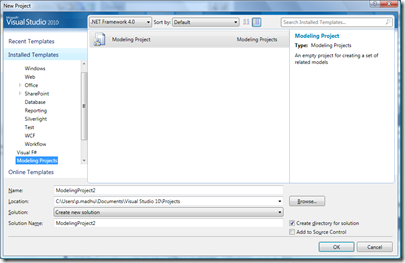
image

This project is used to create different UML diagrams like use case, activity diagram, component diagram, sequence diagram and logical class diagram.

Use Case Diagram

Use cases provides a way to document the functional requirements of the system. With the use of use case diagram, now users can document functional requirements and also create work items out of it. The use case diagram provides most of the features. One thing which i was searching and didn’t find is constraints, which helps to put restrictions on which the use case will operate. See below a sample use case diagram created using Visual Studio. One cool thing which i liked is, for each of the use cases you can associate work items and track it. This gives a very good traceability.
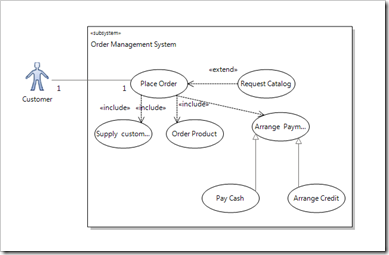
image

Activity Diagram

Activity diagram is used to model state machines like workflows. The activity diagram in Visual Studio covers most of the stuff available in UML 2. Below sample shows the activity diagram created using Visual Studio. As with use cases, you can create work items for each action item. One thing which i was looking in activity diagram which was missing is swim lanes which helps in separating the actions performed by various users/departments.
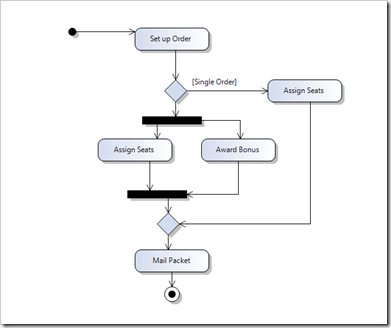
image

Component Diagram

Component diagram helps to describe the components which make the application. The below picture shows the component diagram created using Visual Studio 2010. Again as in the previous diagrams, you can create work items based on the components. One cool thing with component diagrams is that you can create sequence diagram from this. Selecting “Create Lifeline” from the context menu of the action item creates the sequence diagram. In component diagram something which was missing was the assembly connector which is used to bridge the required and provided interface.
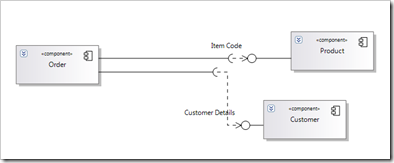
image

Sequence Diagram

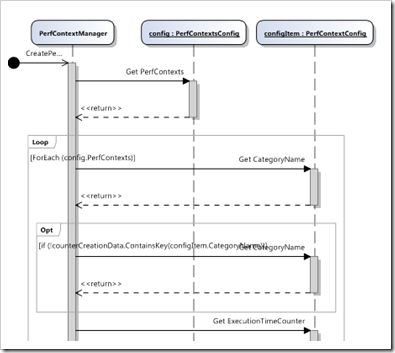
Sequence diagram helps to describe the interaction between the various components. Visual Studio 2010 provides some re-engineering capability and creates sequence diagrams from a method, this helps to understand the code better. However there seems to be a bug and it works only for the Generation scope of Current Project.

image

The below picture shows the sequence diagram created using Visual studio.
image

Logical Class Diagram

Logical class diagram let the user to model the classes, interfaces and enumerations used in the particular application. Logical class diagram has almost all the features available in UML 2 class diagram. The one key thing which i noticed was the attribute types.. Only 4 types are listed… not sure what happened to the other types… One important thing which is missing is the ability to re-engineer the existing code and create class diagram from the same.

image

The list of UML diagrams provided is a good improvement from earlier versions of Visual Studio, however there are still quite a lot of diagrams to be covered like Deployment diagrams, State machine diagrams etc and not to forget the full UML 2 support in all the diagrams.

Apart from the UML diagrams, there is one other diagram which can be created using the Modeling Project. This diagram is called layer diagram. This is the diagram which will be used by the Architects to define the architecture of the application. The cool thing about this diagram is that it comes with in-built types of architecture like 3-Tier, 4-Tier and MVC. The architect can use this as boiler plate and then start customizing the diagram. The below diagram shows the 4-tier layer diagram created using the template provided.

image

One cool thing about the layer diagram is it provides the ability to validate whether the components developed confirms to the architecture. The validation can be done from the designer, command line and also the build process.

Dependency Graph

Using Visual Studio 2010 its very easy to create the dependency graph which will come handy during re-engineering of existing code. The dependency graph can be created based on assembly, namespace or class.

image

The above picture shows an example of dependency graph which is generated using Visual Studio 2010. With the help of the dependency graph it is very easy to find out the assembly/namespace/class which are dependent on a particular assembly/namespace/class.

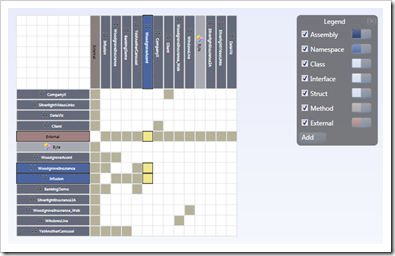
Visual studio allows you to view the dependency information as a matrix as well as shown below.
image

One bad thing about dependency graph (at least the beta 1) is it just hogs memory… It eats so much memory that not even 3 GB of RAM is enough of it… :-(. Hopefully this will be rectified in the RTM.

Conclusion

With Visual Studio 2010, UML is back as the modeling language within Microsoft’s IDE. Though it doesn’t have the full breadth of UML 2 capabilities still its a good start by having some of the important diagrams in place. Once the full support of UML 2 is added into the IDE it will be a force to reckon with thus giving a complete Life Cycle management.

Saturday, August 29, 2009

.NET 4.0 CLR Enhancements

I was looking at .NET 4.0 and was thinking if there are any enhancements to the CLR at least this time? (Remember the last enhancement of the CLR was about 4 years back with the release of .NET 2.0. Both .NET 3.0 & 3.5 used the CLR which comes with .NET 2.0). As it turns out, the CLR part of .NET 4.0 has quite a lot of enhancements. So without further ado, lets look at the enhancements…

  • In-process side By Side CLR

I guess this is one of biggest enhancement in the CLR. In the earlier versions, the host process can only load one version of the CLR. CLR used something known as the unification policy to figure out the single version of the CLR to be loaded in the process. This can cause compatibility issues to say the least. The biggest challenge with this limitation is for the add-in developers as they can’t be sure which version of .NET framework their code will be run. The code has to be checked for various compatibility issues if the authors need it to be perfect.

With .NET 4.0, it will be possible to run multiple CLR versions side by side on the same process. So it is possible to have a host process which has three add-ins developed in .NET 1.1, .NET 2.0 and .NET 4.0. This should be music to the ears of add-in developers.

  • GC enhancement

Pre .NET 4.0, when Garbage collection happens you would notice the application to pause when the Gen 2 size is quite large. Also, the GC is a concurrent GC i.e. it will not be able to do Gen 2 collection when Gen 0/Gen 1 collection is in progress and vice versa.

With .NET 4.0, collection algorithm has undergone quite a bit of change which means the collection will be faster than before. However, the application will still pause when collection happens. .NET 4.0 provides notification feature which can be used to get notified before collection happens.

.NET 4.0 also provides a new type of collection named Background collection. With background collection, Gen 0/Gen 1 collection can happen while doing Gen 2 and vice versa. This will help in reducing the latency during application execution.

  • Support for Dynamic & Functional Languages

With .NET 4.0, there will be support for dynamic and functional languages like IronPython, IronRuby, F#, etc. With the support for these languages, CLR will have capabilities like Tuples, Biginteger and Tail Recursion which were added for these languages. All the languages supported by the .NET framework will be able to benefit from these additions for example, biginteger can be used in C#.

  • Corrupted State Exceptions

There are certain exceptions which cannot be caught by normal catch statements like Invalid Memory, AccessViolation, etc. It is possible to catch these exceptions with .NET 4.0 with the help of Corrupted state exceptions. Corrupted state exception(CSE) can be handled by the program by adding the attribute [HandleProcessCorruptedStateExceptions] which signals to the CLR that the program wants to handled CSE.

  • Code Contracts

Code contracts introduced in .NET 4.0 is a best way to tell the compiler about what we know about our program in terms of parameters and their permissible values for a particular function. Code contracts helps you to provide the behavior of the function in terms of pre-conditions and post-conditions. These conditions helps to perform both runtime and static analysis of the code behavior.

  • Native/Managed Interop

With .NET 4.0, there wont be any PIA’s which makes it easier for the managed application to call COM libraries. The TLBIMP tool will be available as a shared source through codeplex thus making it easy to modify the code based on our requirements to generate the interop assembly.

P/Invoke has become much simpler with .NET 4.0 with the use of wrapper tool. With the wrapper tool it will be easy to create P/Invoke wrappers for windows API’s.

  • Threading for multi core

Parallel extensions in .NET 4.0 help to write programs which target the multi-core environment. Parallel extensions make use of the Thread pool part of the CLR for allocation of threads. Thread pool has been enhanced to provide better support for multi-core scenarios.

  • Profiling

Its not longer required that you have Visual Studio installed on your production servers to do profiling of the application. With .NET 4.0, new API’s have been added which enables to attach/detach performance and memory profilers.

  • Debugging

With .NET 4.0 it is now possible to do dump debugging using the interface ICorDebug.

Phew!!! that’s quite a lot of enhancements to the CLR. Of the whole lot, my favorites are the In-process side by side CLR, GC enhancements and Code contracts.

Reference: CLR Futures by Joshua Goodman

Technorati Tags: ,